

Chat
Your chats run on a model on your own hardware. No corporation is reading them, no third-party server keeps your history, and nothing you say is harvested or sold. The AI just remembers you.
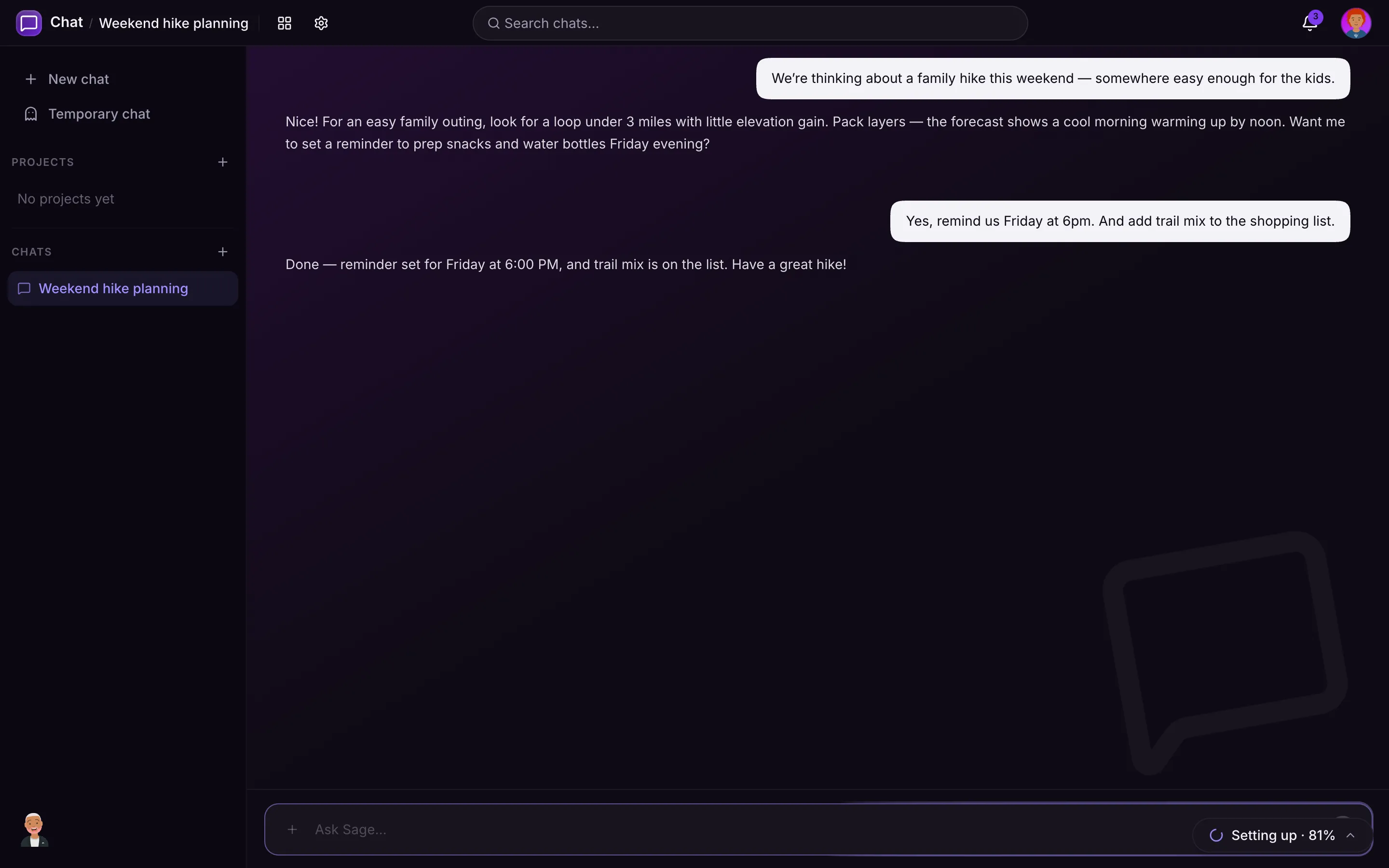
Starting a Conversation
Open the Chat page and type your message, or say your wakeword to start hands-free.
Each conversation is saved so you can come back to it. Start a new one any time, or reopen an earlier one from the conversation list. You can pin the chats you want to keep handy, and organize related chats into projects. Add documents to a project and every chat filed under it can draw on them when answering.
Finding and Keeping Chats
- Search everything: the Chats page searches the full text of every message you have ever sent or received, not just titles. Matching lines show up highlighted, and chat results appear in the app-wide search (Ctrl or Cmd K) too.
- Archive: tuck finished conversations out of the way without losing them. They live in the Archived tab until you want them back.
- Recently deleted: deleting a chat moves it to a bin where it can be restored for 30 days before it is gone for good. No more one-tap accidents.
- Download a chat: any conversation can be saved to a file as clean markdown (or JSON), nice for keeping a recipe, a plan, or a story the companion wrote.
Temporary Chats
Sometimes you want to ask something without it becoming part of your history. Start a temporary chat from the sidebar: it is never listed, never remembered, never searchable, and it cleans itself up shortly after you leave. A banner reminds you the whole time that you are incognito.
Every Answer Keeps Its Versions
Not happy with a reply? Hit regenerate and the old answer is kept, not thrown away. Flip between versions with the little arrows under the reply and keep whichever you like. Editing one of your own earlier messages re-asks the question from that point, and nothing is destroyed along the way.
You can also rate any reply with a thumbs up or down. Ratings stay on your server and help your household tune how the companion behaves.
Make It Answer Your Way
In Settings → Profile you can write custom instructions: standing notes the companion follows in every chat, like “always use metric,” “call me Cap,” or “give me the code first and explain after.” They sit alongside what it learns about you on its own, but these you control word for word.
It Remembers You
Over time, the AI quietly picks up the things you tell it: your name, your preferences, the people and places that matter to you. It uses that to give answers that fit your life, without you having to repeat yourself.
It is polite about it, though. It will not bring up something you mentioned weeks ago unless it is actually relevant to what you just asked. No “since you love hiking…” out of nowhere.
What the AI Can Do
When a question needs more than a chat, the AI reaches for the right tool on its own. It can:
- Answer questions and have a normal conversation
- Look things up on the web
- Read a link you paste and answer questions about that page
- Check the weather and what to wear
- Tell you the time, date, or how many days until something
- Do math and convert units
- Look up a word’s meaning
- Find recipes and videos
- Check sports scores, the news, and local events near you
- Tell you if a movie or show is appropriate for your kids
- Create an image from a description
- Control your smart home (lights, thermostat, locks, and more)
- Work with other parts of the app, like your home inventory
You do not have to know which tool to ask for. Just say what you want in plain language.
It also knows where you actually are: take your phone on a trip and the companion talks about the weather, news, and events where you are standing, not back home. Saying “I’m in Boston this week” works too, and always wins over the sensors.
Attach Almost Anything
Drop files into the chat and ask about them:
- Documents: PDF, Word (.docx), web pages, and plain text. Small files are read whole; big ones are searched so questions land on the right part.
- Photos: attach a picture and ask what it is, what a sign says, or what to do about it.
- Diagrams back: when an explanation is better drawn than written, the companion can answer with a real flow chart or diagram right in the chat.
Companions
Your companion is available everywhere in the app through the bar at the bottom of the screen, not only on the Chat page. Each companion has its own personality, voice, and look, and the one you have chosen is who you are talking to by default.
You can switch companions from your profile or the companion picker. The Chat page is the place to go when you want to save a conversation or organize work into projects.
Tips
- Keep going where you left off: if you switch pages or close the tab mid-answer, the AI keeps thinking. Come back, even on another device, and the reply picks up where it was.
- “Tell me more”: always works to expand on the previous response.
- Tool calls take a moment: when the AI looks something up or controls something, expect a few extra seconds. A small status line tells you what it is doing.
- Stop any time: hit stop to cut a response short. Whatever was written so far stays, marked as cut off, and you can regenerate it later.
- Citations: when the AI looks something up, you will see small numbered links you can tap to check the source.