

MaiPai Desktop (Desktop App)
MaiPai Desktop, the desktop app, puts your companion right on your desktop as a Dynamic Island: a dark capsule that sits flush against the top of your screen (hugging the notch on a MacBook). Your companion lives there all day — listening for its wake word, answering out loud, and morphing open when you talk to it — without a browser tab open.
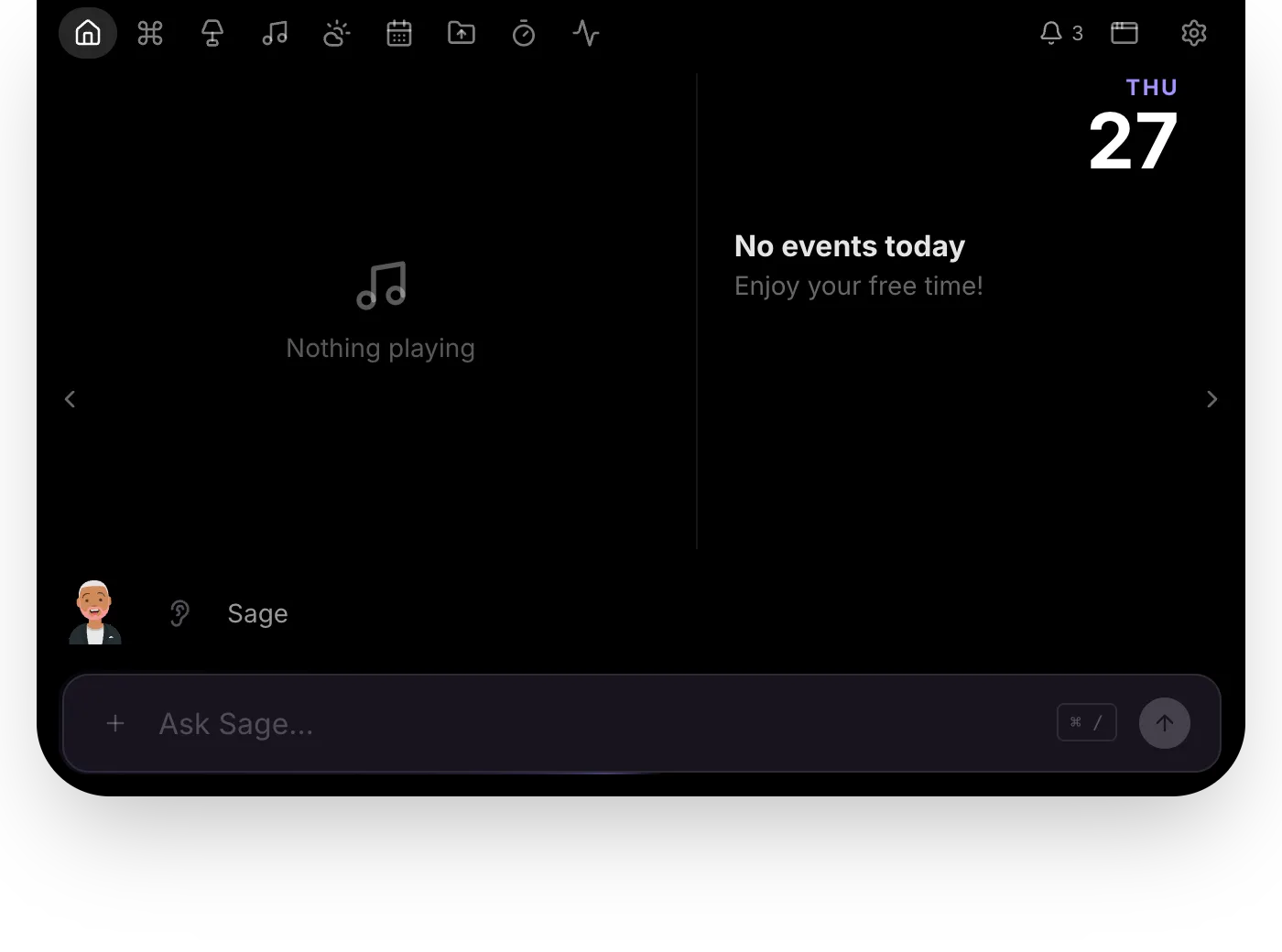

Like everything else, it talks only to your server. Nothing you say to it, show it, or ask it ever leaves your home.
What it does
- Your companion, always one word away — the island keeps the wake word armed from launch. Just start talking. It morphs open while listening and replying, then settles back down.
- Three sizes — right-click the avatar (or click the chevron) to pick the island’s resting size: Mini (a small avatar puck), Docked (avatar + typed input), or Max (the full bar with music, weather, calendar, and local events).
- Screen awareness — ask “what am I looking at?” or “what’s this error?” and the island captures the screen you’re on and answers using your server’s vision model. The screenshot goes to your server, not to a cloud.
- Global hotkey —
Cmd/Ctrl+Shift+Spaceopens the composer from anywhere (and summons the island if it was hidden). - Quiet by default — on a normal boot only the island and a tray icon appear. The full app opens on demand from the tray, the dock icon, or a click on the avatar. Closing the main window hides it to the tray; Quit lives in the tray menu.
Installing
Download the installer for your platform from the project’s GitHub Releases
page (published from desktop-v* tags):
- macOS: open the
.dmgand drag MaiPai Desktop to Applications. - Windows: run the NSIS
.exeinstaller.
Early builds are not yet code-signed, so the first launch needs one extra step:
- macOS: Gatekeeper blocks the first open. Right-click the app → Open →
Open. (Or from Terminal:
xattr -dr com.apple.quarantine "/Applications/MaiPai Desktop.app".) - Windows: SmartScreen warns once. Click More info → Run anyway.
Prefer building it yourself? From the repo: cd desktop && bun install, then
bun run dist:mac or bun run dist:win.
First-run setup
- Point it at your server. On first launch MaiPai Desktop asks for your server address —
e.g.
http://192.168.1.10:3000— and checks it’s reachable before continuing. - Sign in once. Pick your profile like you would in the browser. The session sticks for 7 days at a time.
- Launch at login is enabled automatically on first setup, so the island is there after every reboot. You can flip it off from the tray menu.
Enabling screen awareness on macOS
macOS only shows an app in its Screen Recording list after the first capture attempt:
- Ask the companion something about your screen once (the answer will fail).
- Open System Settings → Privacy & Security → Screen Recording and enable MaiPai Desktop.
- Fully quit and relaunch the app — the permission doesn’t apply to a running process.
Tips
- Change the hotkey: tray → Open Settings File, edit
hotkey, restart. - Stop the always-visible pill: the island stays on screen while the mic is armed; turn that off via tray → Always Listening.
- The island is click-through outside the capsule — it never steals clicks from the window behind it.